Previously, I came across two great posts — Yuanji's Blog and lxchapu — both of which introduced how to build a website analytics platform using Umami. I found the idea really interesting, so I decided to try it myself.
You're welcome to check out Mei's Blog Visitor Analytics 🌸.
Supabase
First, go to Supabase and sign up or log in using your GitHub account.
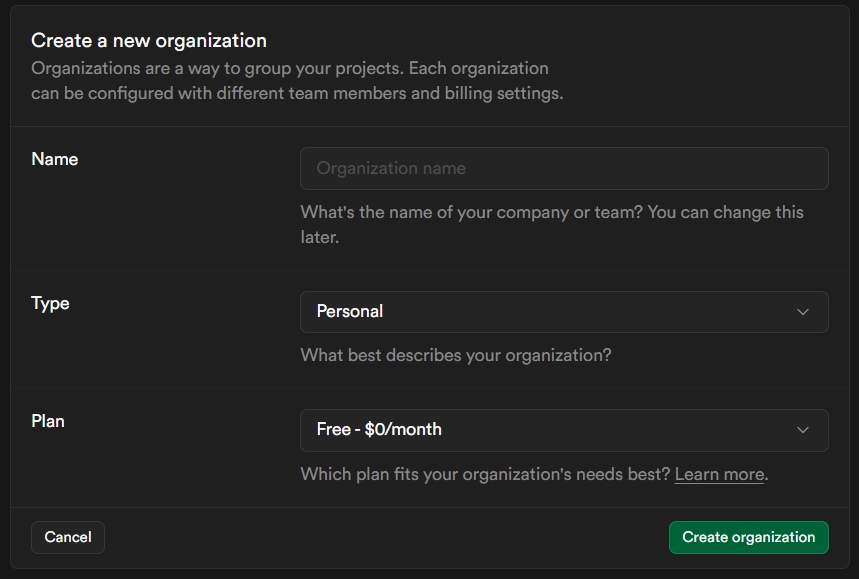
After logging in, select New organization. A dialog will appear — you can choose any name you like for Name, keep the other options as default, and then click Create organization.
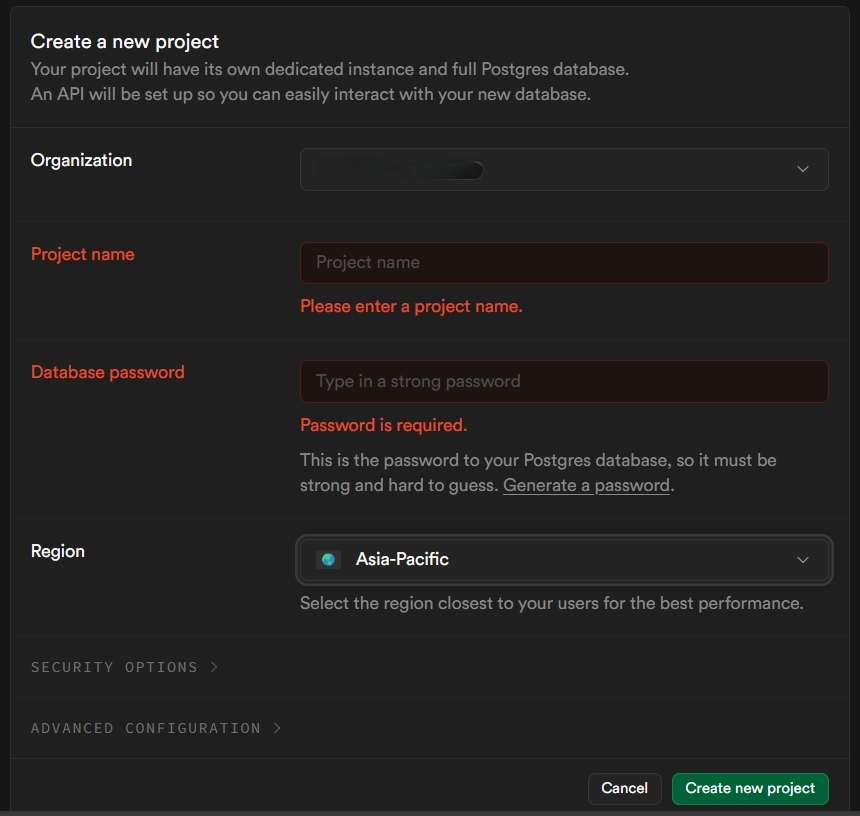
Once inside the organization, click New project to create a new project.
Set your own Project name and Database password. For Region, it's recommended to choose the region closest to your target audience. For example, if most of your visitors are in Asia, you can select Asia-Pacific. Finally, click Create new project.
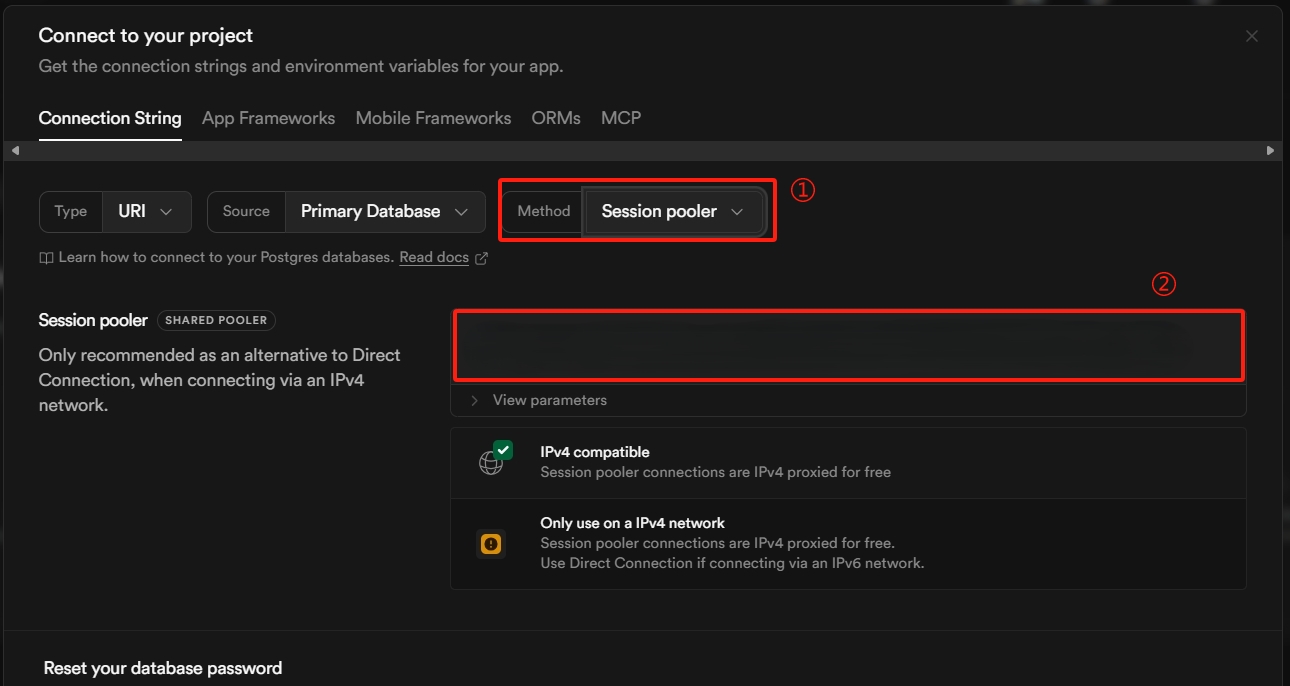
After the project is created, click Connect at the top.
In the popup shown below, make sure option ① is set to Session pooler, then copy the value in box ② — we'll need it later.
Deploying Umami on Vercel
Next, fork the official Umami repository to your own GitHub account.
Then log in to Vercel and create a new project. During the setup, add an Environment Variable using the value you copied from Supabase earlier.
Make sure to replace the password part in the value with the database password you set when creating the Supabase project.
After that, click Deploy, and that's it 🍀.
Key: DATABASE_URL
Value: postgresql://postgres:[email protected]:5432/postgres
Umami
After the deployment on Vercel is complete, click the generated deployment URL to access the Umami dashboard. By default, Umami creates an administrator account with the following credentials:
- Username:
admin - Password:
umami
After logging in, make sure to change the password immediately.
Next, click Add Website.
In the Domain field, enter the website you want to track (remember to remove the https:// prefix).
Also copy the generated Tracking Code, which you will later need to add inside the <head> of your own project.
At this point, the Umami setup is complete — time to celebrate 🎉